POS Mistakes at a Glance
- Why it happens: Most POS mistakes come from rushed buying decisions and setups nobody checked again.
- Costly mistakes: Hidden fees, skipped staff training, weak security, and messy inventory.
- Setup gaps: Missing integrations, no offline plan, and reports that never get opened.
- Before you buy: Test the system with real transactions and get all fees in writing.
- After you launch: Train every employee, set individual logins, and review a few reports each week.
A point of sale system (POS) should make your day easier. For a lot of owners, it ends up doing the opposite.
The POS mistakes small businesses make are rarely dramatic. They’re small decisions that add up: a fee nobody read, a new hire who was never shown how to process a refund, and a system that can’t talk to your accounting software.
This guide covers the common mistakes small businesses make with their POS, why each one hurts, and how to fix it, whether you’re just setting up or already frustrated with your current system.
Common POS System Mistakes and How to Fix Them
Most POS problems trace back to ten avoidable mistakes, from choosing the wrong system to never opening a report. Each one below comes with a practical fix you can use this week.
1. Picking a System Without Knowing What You Need
If you’re wondering how to choose a POS system, start with your own day, not a vendor’s feature list.
Many owners pick whatever a friend uses or whatever looks cheapest at the trade show. Then, three months in, they find out it doesn’t handle split payments, table service, or product variants.
How to Fix It:
- Write down the five things you do most every day.
- Ask for a live demo and run real transactions through it: a discount, a refund, a split bill, and an item with sizes.
- Check how easy it is to reach customer support and whether it’s included in the price.
2. Overlooking POS Hidden Fees

The advertised price is rarely the full picture. Extra costs show up as payment processing fees that differ by card type, charges for extra registers, paid add-ons, setup costs, and early termination penalties.
Some providers also tie you to a long contract lock-in that makes leaving expensive, even when the system isn’t working for you.
How to Fix It:
- Ask for a full written breakdown before you sign.
- Ask what happens if you cancel early.
- Ask whether you can use your own payment processor.
- Ask what changes in the price when you add a second location.
3. Judging a System by POS System Features Alone
A long features page looks impressive. It doesn’t tell you whether you’ll use any of it. Some businesses pay for loyalty programs, advanced scheduling, and multi-store tools they never turn on.
Others skip a feature they really needed, like modifiers, tipping options, or barcode scanning, and only find out after launch.
How to Fix It:
- Split your list into “must have,” “nice to have,” and “will never use.”
- Compare POS system features against your “must have” list only.
- If a vendor pushes a bundle, ask which parts you can drop.
4. Skipping POS Staff Training
This is the most common mistake, and it’s the easiest to prevent. A system can be perfectly set up and still cause chaos if your team has only half learned it.
Wrong voids, unrecorded discounts, refunds handled the wrong way, and slow lines during a rush all usually come back to training.
How to Fix It:
- Treat POS staff training as part of onboarding, not something people pick up on the job.
- Use the training mode if your system has one.
- Cover the tasks that actually cause trouble: refunds, voids, discounts, tips, and closing out the day.
- Set up employee permissions so a new cashier can’t accidentally (or deliberately) do things only a manager should.
5. Treating POS System Security as an Afterthought
Small businesses often assume they’re too small to be a target. Attackers don’t check your size first.
Shared logins, default passwords, an unlocked back-office computer, and outdated software are some of the most common weak points. Card data adds another layer, since PCI compliance applies to businesses of every size that take card payments.
How to Fix It:
- Give every staff member their own login.
- Change default passwords and keep the software updated.
- Limit who can see reports or edit prices.
- Ask your provider to explain their POS system security, including PCI compliance, in plain language.
6. Mishandling POS Inventory Management
Your POS can be the best inventory tool you own, but only if it’s set up properly.
Common problems include products entered inconsistently, no distinction between sizes or flavors, stock received but never recorded, and counts that drift further from reality every week. Eventually the numbers on screen don’t match the shelf, and nobody trusts either.
How to Fix It:
- Build a clean product list with consistent naming and SKUs from day one.
- Record stock as it arrives, not at the end of the week.
- Turn on low-stock alerts.
- Do a quick cycle count on your fastest-moving items regularly.
Good POS inventory management is mostly a habit, not software.
7. Ignoring POS System Integration
If you’re retyping sales into your accounting software, something is wrong.
Without a proper connection, you get duplicate work, more room for typing errors, and reports that don’t line up. It gets worse when you add an online store, a payroll tool, or a delivery platform that each keep their own version of the truth.
How to Fix It:
- Before you buy, list the tools you already use and ask whether the POS connects to each one, natively or through a paid add-on.
- Ask how often data syncs. “Connected” can mean instant, or it can mean once a day.
8. Not Planning for Offline Mode
The Internet goes down. It’s usually on the busiest afternoon of the week.
Some systems keep taking orders and card payments offline, then sync later. Others freeze completely. You don’t want to learn which type you have while a queue builds at the counter.
How to Fix It:
- Ask exactly how offline mode works: what it can process, what it can’t, and how long it can run.
- Test it yourself by unplugging the router during a quiet hour.
- Write down the steps so any employee can follow them.
9. Never Looking at Reporting and Analytics
Many owners use their POS to ring up sales and nothing else. That leaves a lot of useful information unused.
Your reporting and analytics can show your busiest hours, your best and worst sellers, which items have thin margins, and how each employee’s sales compare. That information helps with staffing, ordering, and pricing.
How to Fix It:
- Set aside 15 minutes each week to review a few reports.
- Look at sales by hour, top items, and refunds or voids.
- You don’t need a data background, just curiosity about what changed since last week.
10. Sticking With a System That Can't Grow
What works for one counter and three staff members can start to strain at two locations and ten. A slow, outdated system is a common reason businesses feel stuck.
A cloud-based POS system isn’t automatically right for everyone, but it usually makes remote access, automatic updates, and adding new locations easier. Older setups can still work well for a single, stable shop, so it depends on your plans.
How to Fix It:
- Ask yourself where the business will be in two years.
- Check that the POS software can handle more products, more users, and more locations.
- Confirm your POS hardware works with newer versions, or plan for the cost of replacing it.
Whatever you choose, scalability should be part of the decision, not an afterthought.
Not sure if your current setup has any of these problems? Contact LMS POS for a quick review of what’s working and what needs fixing.
Common POS Issues and Error Messages (and How to Fix Them)
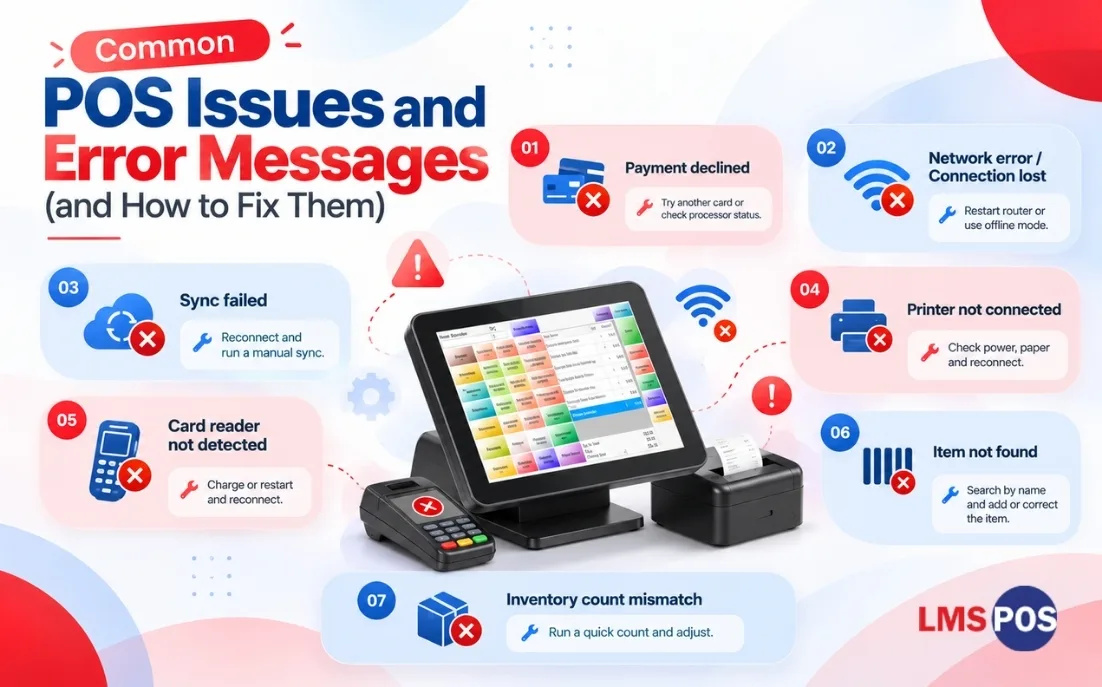
Most POS trouble falls into four groups: connection trouble, payment problems, hardware glitches, and data mismatches. Knowing which POS system problems you can fix in a minute and which need a support call saves time during a busy shift.
Exact wording varies by vendor, but these POS error messages are the ones you’re most likely to see, along with what usually causes them.
Issue or Error Message | Likely Cause | Quick Fix |
Payment declined. | Card issue, insufficient funds, or processor problem | Ask for another card, retry once, then check processor status |
Network error / Connection lost | Weak Wi-Fi or internet outage | Restart the router, check the cable, and switch to offline mode if available. |
Sync failed. | Device disconnected before data uploaded | Reconnect, wait, then force a manual sync |
Printer not connected | Loose cable, paper jam, or paired to the wrong device | Check power and paper, and repair the printer. |
Card reader not detected | Dead battery, Bluetooth dropped, or driver problem | Charge or restart the reader, and reconnect it in settings. |
Item not found | Barcode or SKU missing from the product list | Search by name, then add or correct the item after the shift. |
Inventory count mismatch | Stock received but not recorded, or manual sales edits | Run a quick count and adjust, then find the cause. |
If the same message keeps returning, write down the exact wording and the time it happened before contacting support. It makes the fix much faster.
POS System Mistakes to Avoid: A Quick Checklist
Run through these checks before you sign a contract or switch systems:
- Get the full pricing in writing, including processing rates and cancellation terms.
- Compare features against your must-have list, not the vendor’s full feature page.
- Test the system with your real transactions during the demo.
- Confirm it connects to your accounting, e-commerce, and payroll tools.
- Ask how offline mode works and try it yourself.
- Ask how the provider handles PCI compliance and data security.
- Set individual logins and permission levels for every employee.
- Plan a proper training session before launch day.
- Check that support is reachable when you actually need it.
- Make sure the system can scale if you add products, staff, or locations.
Want to dig deeper? Check out our POS implementation checklist for a step-by-step setup guide.
Final Thoughts
Most POS problems don’t come from bad software. They come from rushed decisions and setups nobody went back to check.
Spend a little more time before you commit and a little more time after you launch. Read the POS pricing, train your people, and look at your reports now and then. That habit prevents many of the POS mistakes small businesses make.
Already using a system that isn’t working? You don’t need to panic or replace everything. Pick one problem from this list and fix it, then see how much easier the next shift feels.
That’s usually how to avoid POS system mistakes in real life: one small, boring improvement at a time.
Is your current POS costing you more than it should? See how LMS POS brings hardware, setup, and staff onboarding together for liquor, grocery, convenience, and smoke shop retailers.
Frequently Asked Questions
What are the most common POS mistakes small businesses make?
The most common POS mistakes small businesses make are choosing a system without testing it, missing hidden fees, skipping staff training, and ignoring security. Poor inventory setup, no integrations, and no offline plan follow closely. Most start with a rushed buying decision.
What are some common POS issues?
Common POS issues include declined payments, sync failures, dropped Wi-Fi, printers or card readers that won’t connect, and inventory counts that don’t match the shelf. Most trace back to unstable internet, outdated software, or setup errors.
What are the common POS error messages, and what do they mean?
Most POS error messages point to connection, payment, sync, or hardware trouble. “Network error” means internet problems, “payment declined” means a card or processor issue, and “sync failed” means data didn’t upload. Restart the device and note the exact wording before calling support.
How can small businesses avoid POS system mistakes?
Test the system with real transactions before buying, get all fees in writing, and train every employee before launch. Then set individual logins, confirm your integrations and offline mode work, and review a few reports each week.
What should small businesses look for in a POS system?
Look for clear pricing, the features you use daily, offline mode, inventory and reporting tools, and integration with your accounting software. Also check PCI compliance, support availability, and whether it can handle more staff or locations.
What are the best POS solutions for small businesses?
No single option fits every business. Restaurants need table and kitchen tools, retail shops need strong inventory and barcode support, and service businesses need appointment booking. Shortlist two or three options and demo each with your real transactions.
How do you train employees on a POS system?
Use training mode for hands-on practice with sales, refunds, voids, discounts, and closing out. Give staff a one-page cheat sheet, pair new hires with an experienced colleague for a few shifts, and retrain the team after major updates.
Why do small businesses switch POS systems?
Small businesses mainly switch because of unexpected fees, poor support, frequent downtime, missing integrations, or outgrowing the system. Many chose on price alone and later found the system didn’t fit how they actually work.

Dipesh Shrestha
Dipesh Shrestha is the co-founder of Compro Boston, the company behind LMS-POS. With over two decades of hands-on experience in point-of-sale (POS) deployment, payment processing ecosystems, and retail hardware logistics, he specializes in building secure, highly optimized checkout environments.